

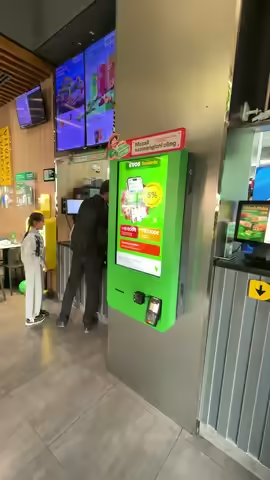
How the edit comes together
First, AI watches all your clips with sound and picks the good moments. It skips shaky, blurry and dark footage, accidental shots like the camera pointing at the floor, and personal info on screen.
If you record the voiceover yourself, we clean it up first: pauses over 0.3 seconds, “um”s and retakes are cut. Then each shot starts on the word that names it, so the picture follows your voice. Shots last 1–4 seconds, the first ones shorter, and no moment is used twice.
AI then reviews the draft and moves any shot that doesn’t match the words. The final video is 1080×1920: vertical shots fill the screen, horizontal ones sit centered over a blurred copy. Clip audio plays quietly under your voice when the clip has almost no talking.
With an AI voice, AI writes the script from your clips and description at about 2 words per second, voices each line and times the shots to it.
How to do it
Open Clips + voiceover
Pick this mode on the start screen and add your clips: browse for them or drag them in. A single video with no speech works too.
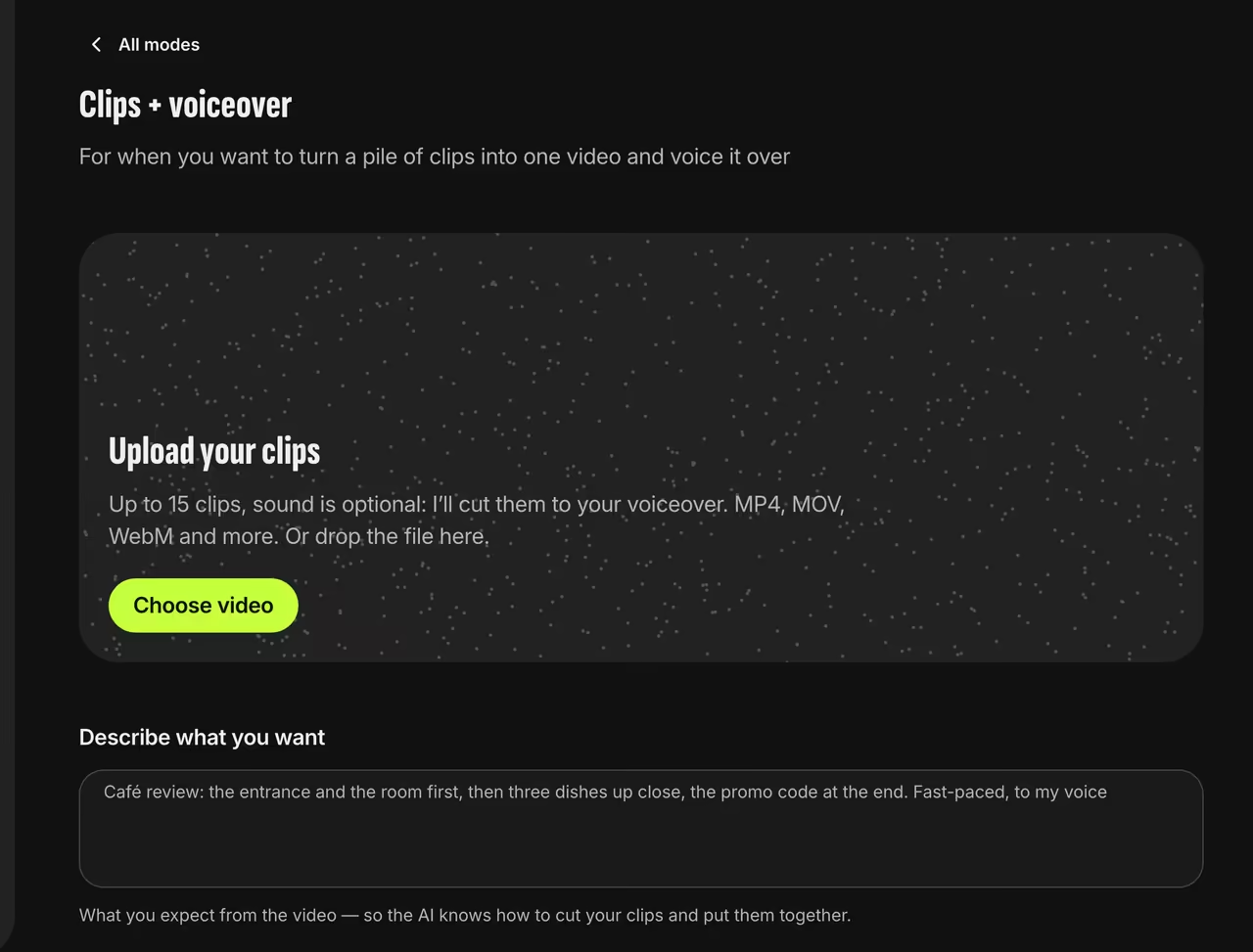
Clips + voiceover mode Describe what you want
Write a line or two about the video, like “café review: the entrance first, then close-ups of the dishes, promo code at the end.” AI uses it to pick and cut the shots.
Record your voiceover
Tap “Record voice” and talk in pieces, up to 3 minutes in total. To read from a finished script, see the guide to recording a voiceover.
Or use an AI voice
Switch off “Record your own voiceover” and turn on “Use an AI voiceover”, then pick a female or male voice and a length of 30, 60 or 90 seconds. AI writes the script from your clips and description.
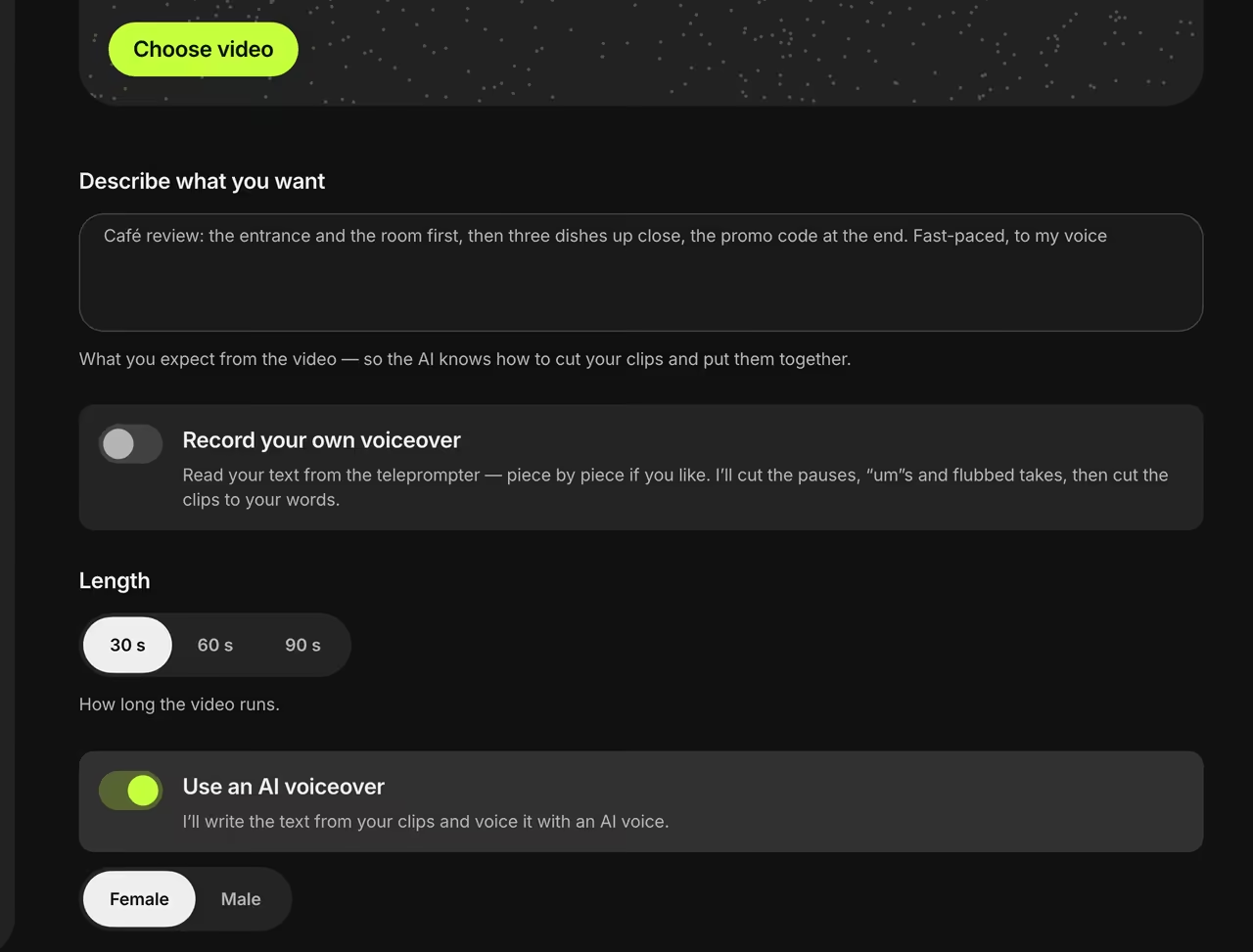
AI voiceover Get your video
We cut the shots to your voiceover and add captions. The finished video shows up in your dashboard.
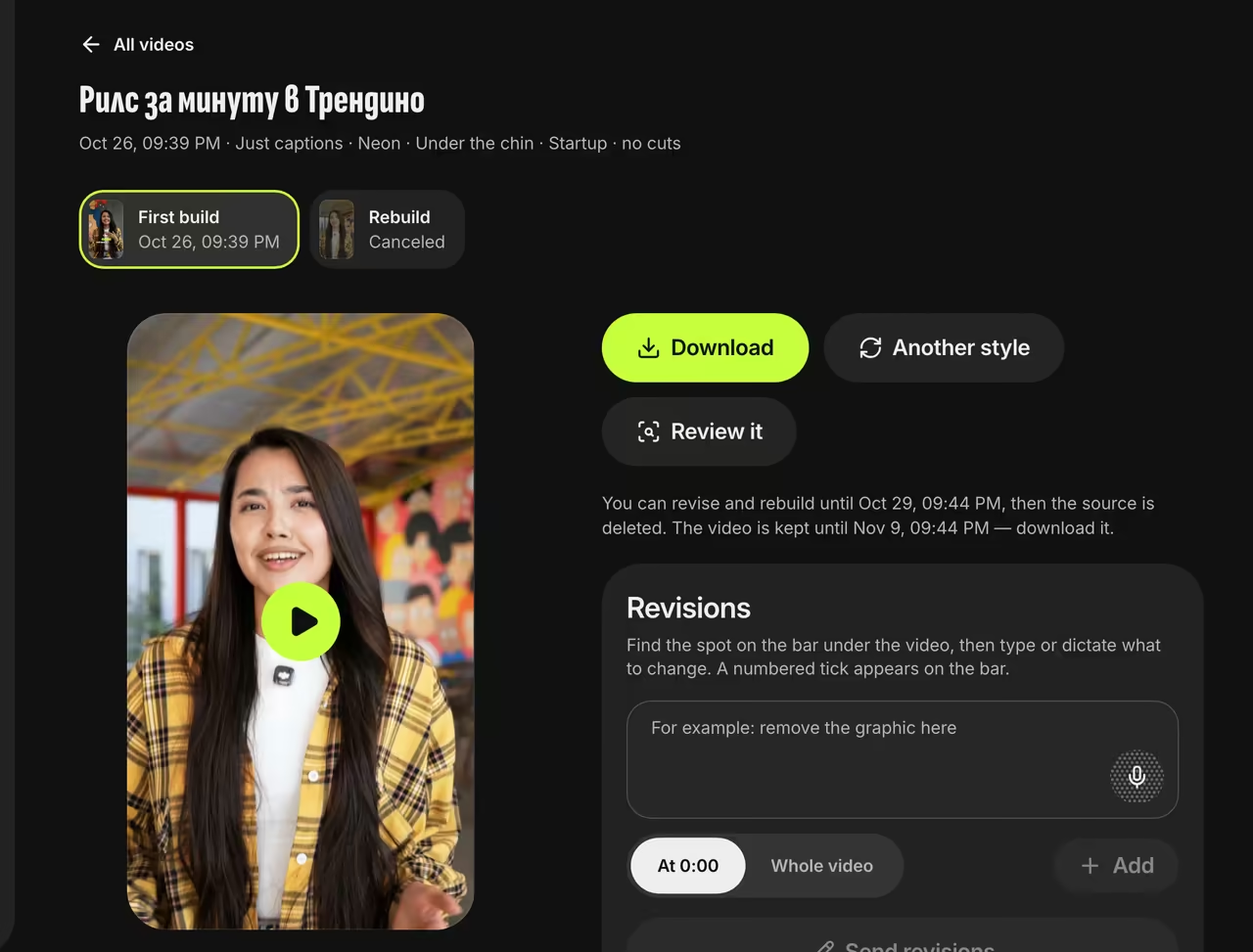
Finished video


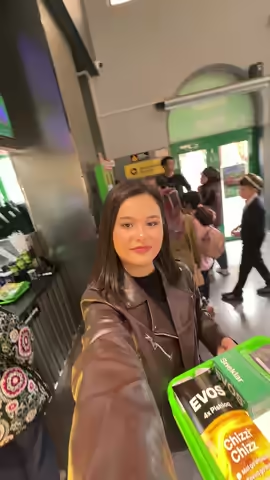
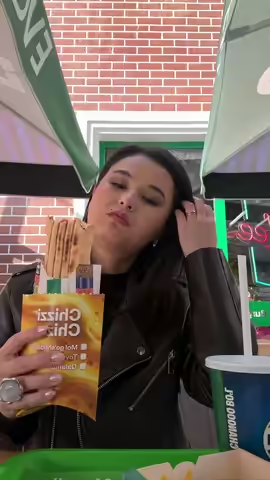
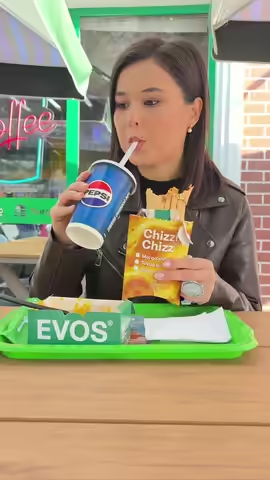
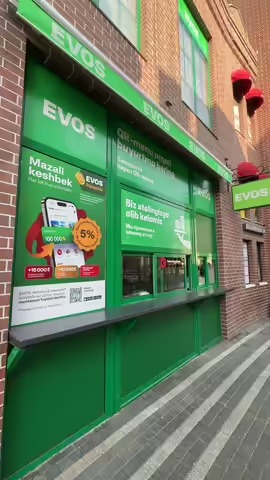
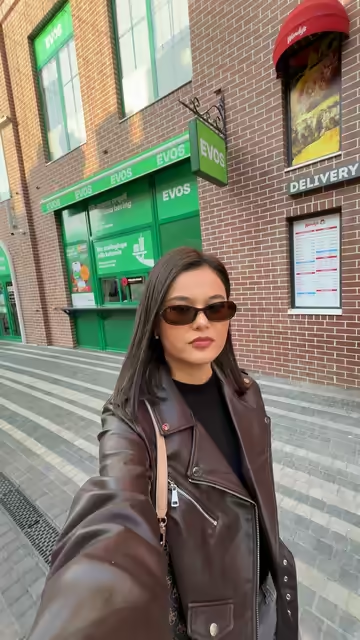
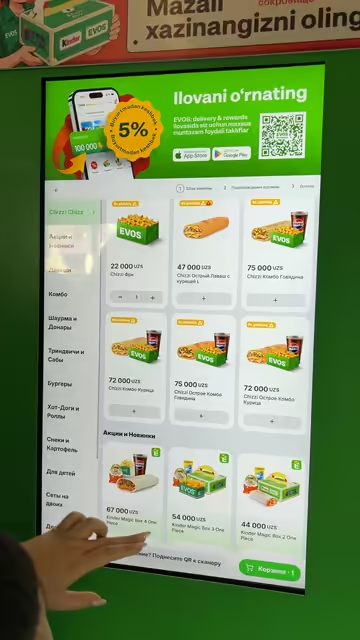
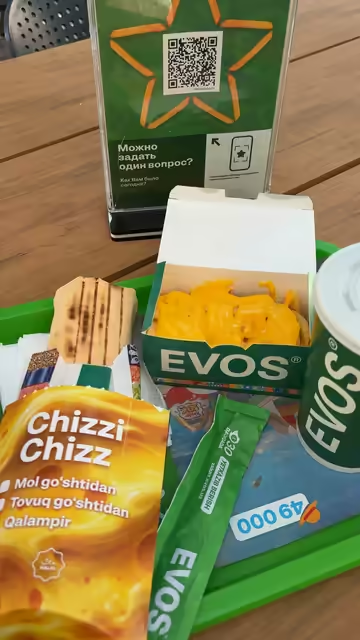
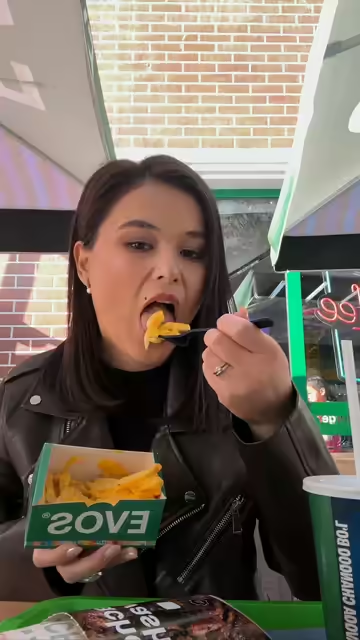
Five clips, one video
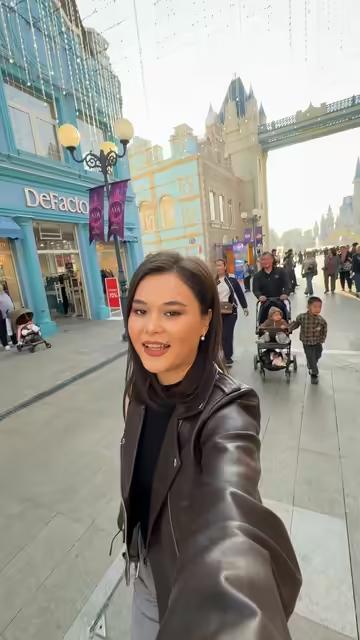
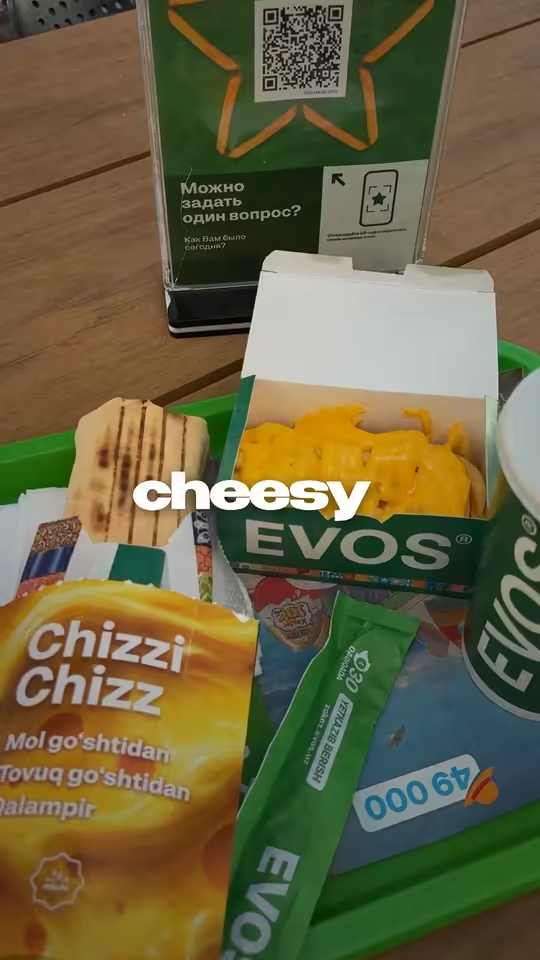
On the left, clips from a phone gallery; on the right, a frame of the finished video with captions from the voiceover.
FAQ
Can I skip the voice?
Yes. Turn both voiceovers off and we’ll cut just the footage to 30, 60 or 90 seconds, with no captions.
How many clips can I upload?
Up to 15, each under 5 minutes, and no more than 1 GB and 10 minutes in total. The clips’ total length must be at least half the voiceover’s.
What if my clips have talking in them?
If more than a third of a clip is speech, we’ll warn you that its sound will be muted under the voiceover. To keep the speech, upload the clips in Edit with graphics and captions or Just captions instead: we’ll join them with their original audio.
Why aren’t the shots in the order I filmed them?
AI places shots by the words, not by when you filmed them: each line gets the moment that shows it. It sees the order you uploaded the clips in, but the voiceover sets the cut.